How Restore Differs from Reimport: A QBO Guide

How Restore Differs from Reimport: A QBO Guide
In QuickBooks Online, restore means reverting your entire company file to a point-in-time snapshot — a full-ledger rollback that overwrites every transaction, list, and setting back to that moment. Re-import (the industry term is data import) means loading a CSV or Excel file to add or update specific records in your live company without touching anything else. The operational difference is significant:
- Scope: Restore replaces the whole ledger. Re-import targets only the records in your file.
- Reversibility: A restore is destructive and confirmed by an explicit checkbox in QBO’s UI. A re-import is additive, though choosing the overwrite option on a specific field is not reversible.
- Downtime: Restore requires the company to be offline during the process, followed by bank-feed re-matching and payroll reconciliation. Re-import can run while the company stays live.
Default recommendation: For a single incorrect invoice, a missing customer, or a small data correction, re-import is the right tool. Reserve a full restore for widespread ledger corruption, a mass-delete event, or ransomware where the entire file state must be rolled back.
Table of Contents
- What does “restore” actually mean in QuickBooks Online?
- What re-importing data into QBO actually does
- Restore vs. re-import: how the two methods compare
- When should you restore vs. re-import?
- A safe, sandbox-first recovery workflow
- Common risks and how to avoid them
- What a reliable QBO backup should capture
- Timeline, effort, and cost tradeoffs
- Key Takeaways
- The case for surgical recovery over reflexive restores
- Akikalabs protects your QBO data at the record level
- Useful sources and further reading
What does “restore” actually mean in QuickBooks Online?
QuickBooks Online Advanced offers a native backup-and-restore feature that reverts the entire company file to a chosen point-in-time snapshot. Every transaction, list change, and user-access edit made between that snapshot and the present is rolled back in the ledger. Nothing is preserved selectively.
Before the restore begins, QBO requires you to check a box confirming that you understand the action overwrites all data back to the specified date. That confirmation step exists because the action cannot be undone once it starts.
Restore is all-or-nothing. A native QBO restore replaces your live ledger, chart of accounts, settings, and most metadata with the snapshot state. Intuit retains backup snapshots for up to the previous calendar year, so recovery windows are limited by that retention boundary.
Several categories of data are excluded from native restores:
- Budgets must be exported separately as CSV files before restoring.
- Inventory history and inventory adjustments are not included in the restore.
- Tax rates mapped to expense accounts may be restored to liability accounts rather than their original mapping.
After a restore completes, bank transactions and payroll payments that occurred after the snapshot still exist in the real world. Those entries must be re-matched or re-entered manually, which is where most of the post-restore labor cost accumulates.

What re-importing data into QBO actually does
Re-importing, or data import, uses a CSV or Excel file to add or update specific lists and transactions in an existing QBO company. The live ledger stays intact except for the records explicitly included in the import file.
Typical importable items include customers, vendors, chart of accounts, products and services, invoices, bills, and opening balances. Each import type follows its own column-header format, and QBO’s import process matches records by name or ID — it cannot automatically merge conflicting items without manual preparation.
The overwrite option is a one-way door. When you choose to overwrite existing values during an import, those original values are gone. Duplicate detection is manual, and a mismatched header or wrong date format can silently corrupt the records you intended to fix.
Key constraints to know before you import:
- Inventory history and certain payroll elements are not importable through standard CSV workflows.
- Existing records with the same name must be renamed or deactivated before import to avoid conflicts.
- Custom fields and system metadata (user roles, audit trail entries) are not carried by CSV imports.
Restore vs. re-import: how the two methods compare
| Dimension | Full Restore | Re-import (Data Import) |
|---|---|---|
| Scope | Entire company ledger, all lists and settings | Only the records in the import file |
| Destructiveness | Overwrites all data to snapshot date; confirmed by explicit checkbox | Additive by default; overwrite option affects only matched fields |
| Granularity | Full snapshot only | Single transaction, customer, or invoice |
| Downtime | Company must be offline; bank feeds and payroll need re-matching after | Company stays live; no scheduled downtime required |
| Metadata preserved | Most metadata reverted to snapshot state; inventory history excluded | Custom fields and audit trail entries not carried by CSV |
| Duplicate risk | Low (full overwrite) | High if name-matching is not validated before import |
| Time to recover | Minutes to initiate; hours of cleanup afterward | Hours to days depending on mapping complexity |
| Prerequisites | QBO Advanced subscription; snapshot within retention window | Correctly formatted CSV; field mapping validated against QBO headers |
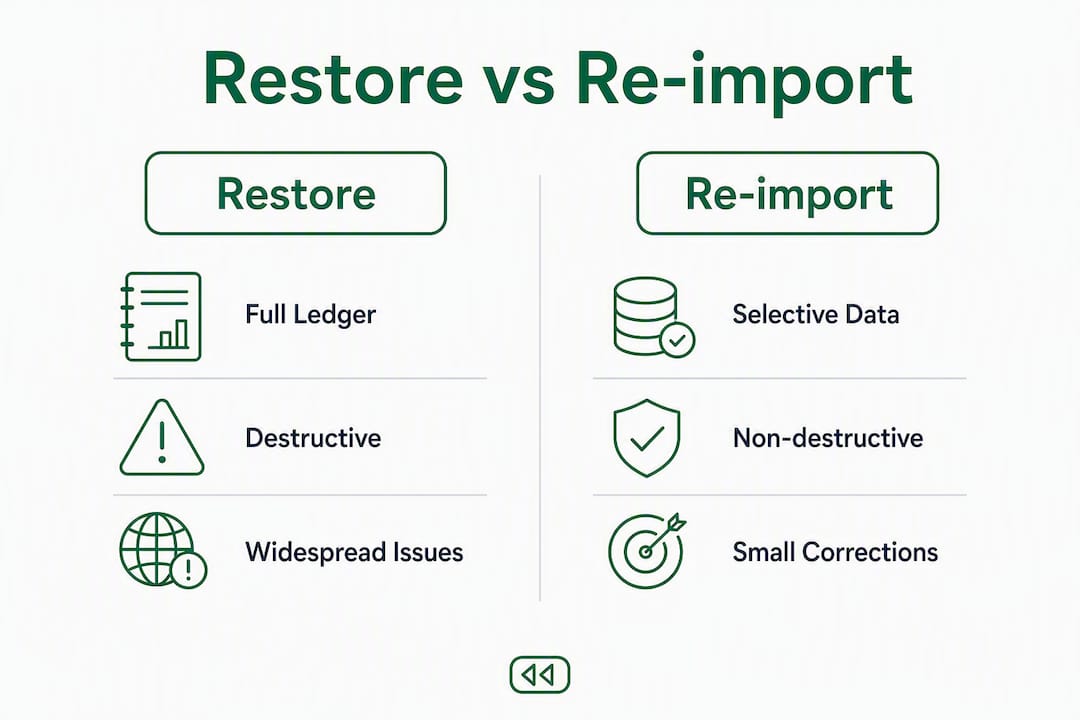
Use re-import when you need a single invoice or customer restored. Use a full restore only when the ledger state itself is corrupt across many records and rework would take longer than a controlled restore plus cleanup.
When should you restore vs. re-import?
Choose re-import when:
- A single invoice, bill, or journal entry was deleted or incorrectly entered.
- A customer or vendor record is missing and needs to be recreated.
- You need to update a batch of product prices or account codes without touching the rest of the ledger.
- Business continuity matters and you cannot afford any downtime.
Choose a full restore when:
- A mass-delete event or ransomware has corrupted large portions of the ledger.
- Multiple interconnected records (transactions, lists, settings) are all wrong and tracing them individually would take longer than a restore plus cleanup.
- You have a clean, recent snapshot and the post-backup transaction volume is low enough that re-matching is manageable.
Decision heuristics: If the affected records number in the single digits or dozens, re-import is almost always faster. If the corruption spans hundreds of transactions or touches foundational settings, a restore becomes the more practical path. Tax-filing deadlines and payroll cycles also matter — a restore during payroll week creates reconciliation work that can cascade into compliance risk.
A safe, sandbox-first recovery workflow
Always test in a sandbox before touching production. The sandbox-first approach avoids mass data loss from a full-file restore when only a subset of records needs to be recovered.
- Create or open a test company. Use QBO’s test-company feature or a separate QBO subscription as your sandbox environment.
- Restore the backup into the sandbox. Choose the snapshot date that contains the records you need to recover. Let the restore complete fully before proceeding.
- Isolate and export the needed records. Navigate to the specific invoices, customers, or transactions you need. Export them as CSV from the sandbox.
- Validate the CSV against production headers. Check that column names, date formats, and account names match your production company exactly. A single header mismatch will cause the import to fail or silently skip rows.
- Run a sample import in production. Import two or three records first. Confirm they appear correctly, with no duplicates and no field corruption, before importing the full set.
- Take a snapshot of production before the full import. This gives you a recovery point if the import introduces unexpected issues.
- Reconcile and verify. Cross-check imported records against the sandbox source, confirm bank-feed matching is unaffected, and review the audit trail.
Pre-import validation checklist:
- Mapping preview confirms all required columns are present.
- Duplicate search run against existing customer and vendor names.
- Date format matches QBO’s expected format (MM/DD/YYYY for US accounts).
- Production snapshot taken immediately before import.
Pro Tip: Before importing customers or vendors, export your current production list and compare names against the import file. QBO matches by exact name, so “Acme Corp” and “Acme Corp.” are treated as two different records and will create duplicates.
Common risks and how to avoid them
Restore risks:
- Irreversible overwrite. Once confirmed, there is no undo. Always take a fresh snapshot of production immediately before initiating a restore.
- Bank-feed mismatch. Transactions that cleared after the snapshot date still exist at the bank. Plan for re-matching time proportional to the gap between snapshot and restore date.
- Payroll discrepancy. Payroll payments already processed by the bank or tax authority are not reversed by a ledger rollback. Those entries must be re-entered manually.
- Lost custom fields. Fields added or modified after the snapshot date revert to their earlier state.
Re-import risks:
- Header mismatches. A column named “Invoice Date” instead of “InvoiceDate” can cause the entire import to fail or skip that field silently.
- Duplicate records. QBO matches by name; any name variation creates a new record rather than updating the existing one.
- Partial imports. If the import file contains errors partway through, QBO may import only the first portion, leaving the data in a mixed state.
- Missing inventory history. Inventory adjustments cannot be imported via standard CSV; those records require manual entry or a third-party tool.
Operational checklist before any recovery action: notify affected staff, take a production snapshot, test in sandbox, document the recovery steps, and schedule post-action reconciliation before closing the books.
What a reliable QBO backup should capture
Before deciding whether to restore, verify that your backup actually contains what you need. A strong backup solution should preserve:
- All transactions (invoices, bills, payments, journal entries) with their original dates and amounts.
- Attachments linked to transactions.
- Custom fields and their values at the time of the snapshot.
- Audit trail entries showing who changed what and when.
- User roles and permissions.
- Chart of accounts, including inactive accounts.
- Settings (payment terms, tax codes, company preferences).
Native QBO backup has documented gaps: budgets require a separate CSV export, and inventory history is excluded from restores. Manual CSV exports fill some of those gaps but miss system metadata like custom fields and user roles, making them unreliable as a sole recovery mechanism.
Pre-restore verification steps:
- Confirm the snapshot date and time cover the period you need.
- Check the retention window — native QBO snapshots are available for up to the previous calendar year.
- Verify which object types are included in the snapshot (budgets, inventory, attachments).
- Run a sandbox preview restore before committing to production.
Third-party backup tools can complement native QBO backup by offering record-level recovery and shorter recovery windows, preserving the metadata that native restores exclude.
Timeline, effort, and cost tradeoffs
Full restore:
- Initiation takes minutes once the snapshot is selected and confirmed.
- Post-restore cleanup (bank-feed re-matching, payroll reconciliation, custom-field review) typically runs from a few hours to a full business day, depending on how much activity occurred after the snapshot date.
- Staff time is the primary cost, compounded by any business downtime during the restore window.
Surgical re-import:
- CSV preparation and field mapping take hours for small batches; larger or more complex datasets can take a full day or more.
- No scheduled downtime required, so business operations continue uninterrupted.
- The risk of rework (fixing duplicates or mapping errors) adds time if validation steps are skipped.
Rule of thumb: prefer re-import for issues that affect a small number of records and where business continuity cannot be interrupted. Prefer a full restore when the scope of corruption is broad enough that record-by-record rework would take longer than a controlled restore plus cleanup. Automated backup subscriptions reduce the labor cost of both paths by ensuring clean, recent snapshots are always available and by enabling granular, record-level recovery without a full-file overwrite.
Key Takeaways
Restore and re-import solve different problems: restore is a full-ledger rollback for widespread corruption, while re-import is the surgical tool for targeted record recovery with no downtime.
| Point | Details |
|---|---|
| Restore is destructive | A QBO restore overwrites the entire company file and cannot be undone once confirmed. |
| Re-import is targeted | CSV imports add or update only the records in the file; the rest of the ledger is untouched. |
| Sandbox first, always | Test every restore in a sandbox, extract needed records, then re-import into production. |
| Native backup has gaps | Budgets and inventory history are excluded from native QBO restores; verify coverage before acting. |
| Akikalabs for granular recovery | Akikalabs provides automated point-in-time snapshots and record-level recovery, reducing the need for full-file restores. |
The case for surgical recovery over reflexive restores
Most accountants reach for a full restore when they should not. The instinct makes sense: a restore feels definitive, like pressing a reset button. But the blast radius of a full restore is rarely proportional to the problem. A deleted invoice does not warrant rolling back two weeks of reconciled transactions, re-matching a hundred bank-feed entries, and explaining to a client why their books look different than they did yesterday.
The sandbox-first workflow described here is not a workaround. It is the correct default for any recovery scenario where the affected records can be isolated and exported. The only time a full restore earns its place is when the ledger state itself is so compromised that surgical extraction is not feasible.
There is also a subtler issue that practitioners underestimate: the post-restore reconciliation burden often exceeds the time it would have taken to re-import the affected records manually. Bank feeds do not re-match themselves. Payroll entries that cleared after the snapshot date must be re-entered. Custom fields revert silently. The restore looks fast at initiation; the cleanup is where the hours accumulate.
Automated, granular backup tools change this calculus. When you can recover a single invoice or a specific customer record without touching the rest of the ledger, the full restore becomes a last resort rather than a first response.
Akikalabs protects your QBO data at the record level
Losing a week of reconciled transactions to a full restore is an avoidable outcome. Akikalabs delivers automated, encrypted point-in-time snapshots for QuickBooks Online, with record-level recovery that lets you pull a single invoice, customer, or journal entry back into production without overwriting anything else.

Where native QBO backup leaves gaps — inventory history, custom fields, attachments, audit trails — Akikalabs captures and preserves them. The diff visibility feature shows exactly what changed between snapshots, so you can confirm what needs to be recovered before you act. Sandbox restores are built into the workflow, giving you a safe environment to extract and validate records before they touch production.
Akikalabs is a subscription SaaS billed per connected QBO company, with a 7-day free trial and optional priority support for accounting firms managing multiple clients. Start your free trial and connect your first QBO company in minutes.
Useful sources and further reading
- Back up and restore your QuickBooks Online Advanced company — Intuit’s official documentation on restore behavior, retention limits, and excluded data types.
- Common questions about importing data to QuickBooks Online — Intuit’s guide to CSV import mapping, overwrite behavior, and duplicate handling.
- How do I restore my company file in QuickBooks Online? — QuickBooks Community thread covering restore exceptions including budgets and inventory.
- Akikalabs blog: QBO backup and restore best practices — Operational guides, checklists, and implementation resources for accountants and bookkeepers.
- Why third-party backups matter for accountants — Akikalabs’ analysis of native QBO backup gaps and the case for granular, record-level recovery.
This article is general information about QuickBooks Online data recovery workflows, not professional accounting or legal advice. Verify current Intuit feature availability and retention limits directly with Intuit or a qualified QuickBooks ProAdvisor before acting on any recovery procedure.
Recommended
- QuickBooks Online Backup: Why Restore Is the Hard Part | Akika Labs
- Akika Labs Blog | QuickBooks Online Backup & Restore
- What Akika Backs Up for QuickBooks Online | Akika Labs
- How Akika Labs Works | QuickBooks Online Backup & Restore
Akika Labs provides secure backup and restore for QuickBooks Online.
Read what Akika backs up, see how the restore workflow works, or review the security model. Akika Labs is an independent product and is not affiliated with Intuit or QuickBooks.